

If your Slack Workspace Owner requires admin approval to install apps, ask them to approve the Mintlify app before you connect it.
Connect your Slack workspace
- Go to the Agent page in your dashboard.
- In the “Agent settings” section, click Install Slack app.
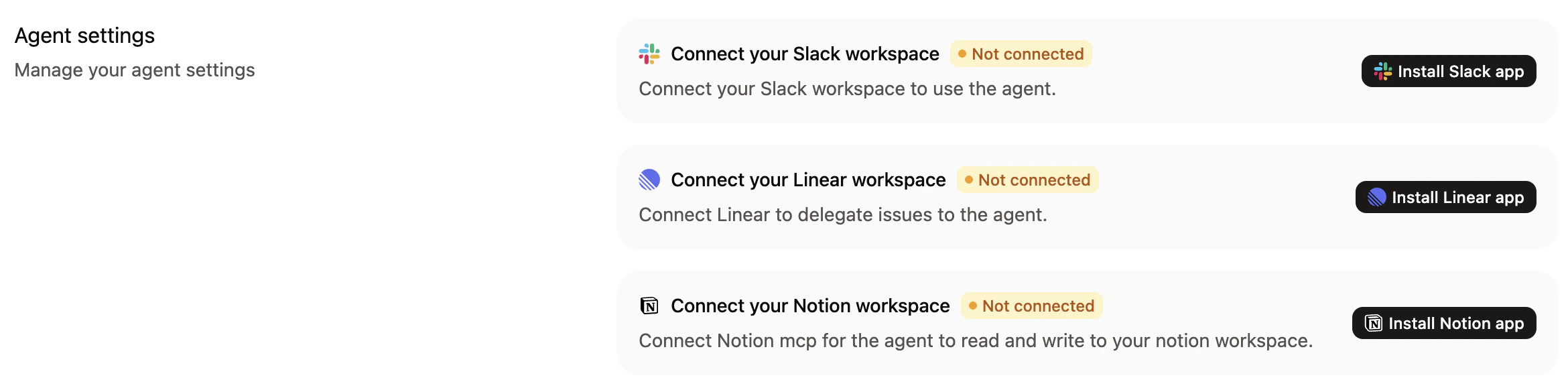
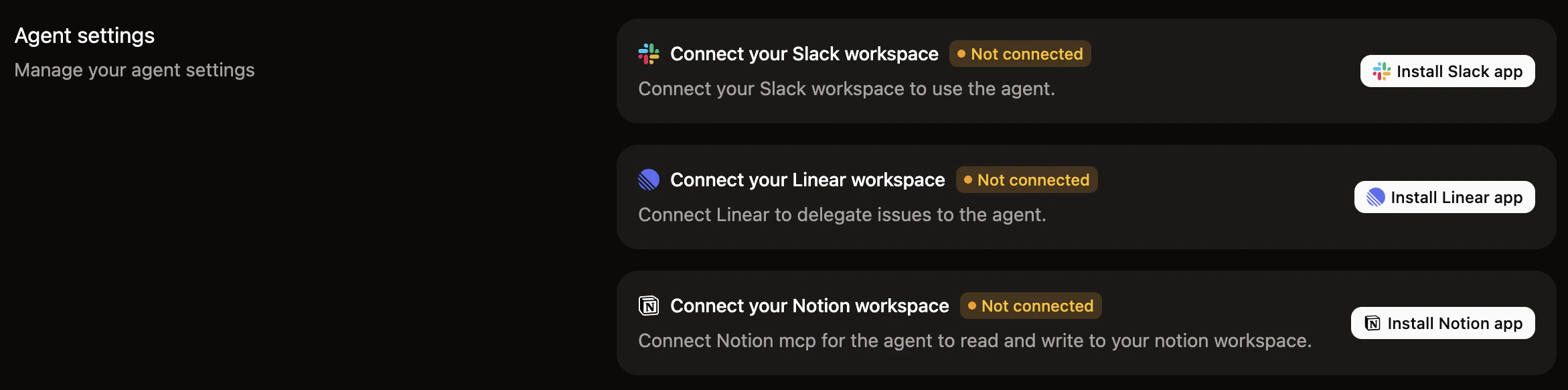
- Follow the Slack prompts to install the
mintlifyapp in your workspace. - Follow the Slack prompts to link your Mintlify account to your Slack workspace.
- Test that the agent is working and responds when you:
- Send a direct message to the agent.
- Mention the agent with
@mintlifyin a channel.
Use the agent in Slack
Once connected, you can:- Send direct messages to the agent to use it privately.
- Mention
@mintlifyin a channel to use it publicly and collaboratively. - Attach files and images directly to your messages for the agent to process and include in your docs.
- Continue conversations in threads to iterate on changes or ask follow-up questions.
- Share pull request links with the agent to update related documentation.
Ask questions about your docs
Ask the agent questions about your product or documentation and receive answers in the thread.- New question: Send a direct message to the agent or mention
@mintlifyin a channel with your question. - Existing thread: Reply in the thread and mention
@mintlifywith a follow-up question.
- “Which pages mention the API rate limit?”
- “How do I set up authentication?”
- “How is our navigation structured?”
Update documentation
Use the agent to update your documentation with a new request or in an existing thread.- New request: Send a direct message to the agent or mention
@mintlifyin a channel with instructions on what to update. - Existing thread: Reply in the thread and mention
@mintlifywith instructions on what to update. - With attachments: Upload images, diagrams, code files, or other documents with your message. The agent automatically processes and includes them in your documentation.
Track progress in real time
When the agent is making changes to your documentation, it provides live feedback in the Slack thread.- Status updates: A live-updating message shows what the agent is doing, such as how many files it has searched, read, and edited.
- Task progress: When the agent breaks your request into multiple tasks, it displays a checklist so you can track progress on each one.
- Questions: If the agent needs more information, it presents options for you to select from or reply in the thread with a custom answer.
- Interruptions: If you send a follow-up message while the agent is still working, it stops the current task and starts on the new one.
- Completion: When the agent finishes, it posts a summary with a link to the pull request and a link to open the changes in the web editor.
Best practices
- Be specific: Tell the agent exactly what you want to know or what you want changed and where.
- Add context: If a thread doesn’t contain all the necessary information, include additional details in your message to the agent.
- Review carefully: You should always review pull requests that the agent creates before merging them.